Why I'm Building a Handwriting App for E-Ink Tablets
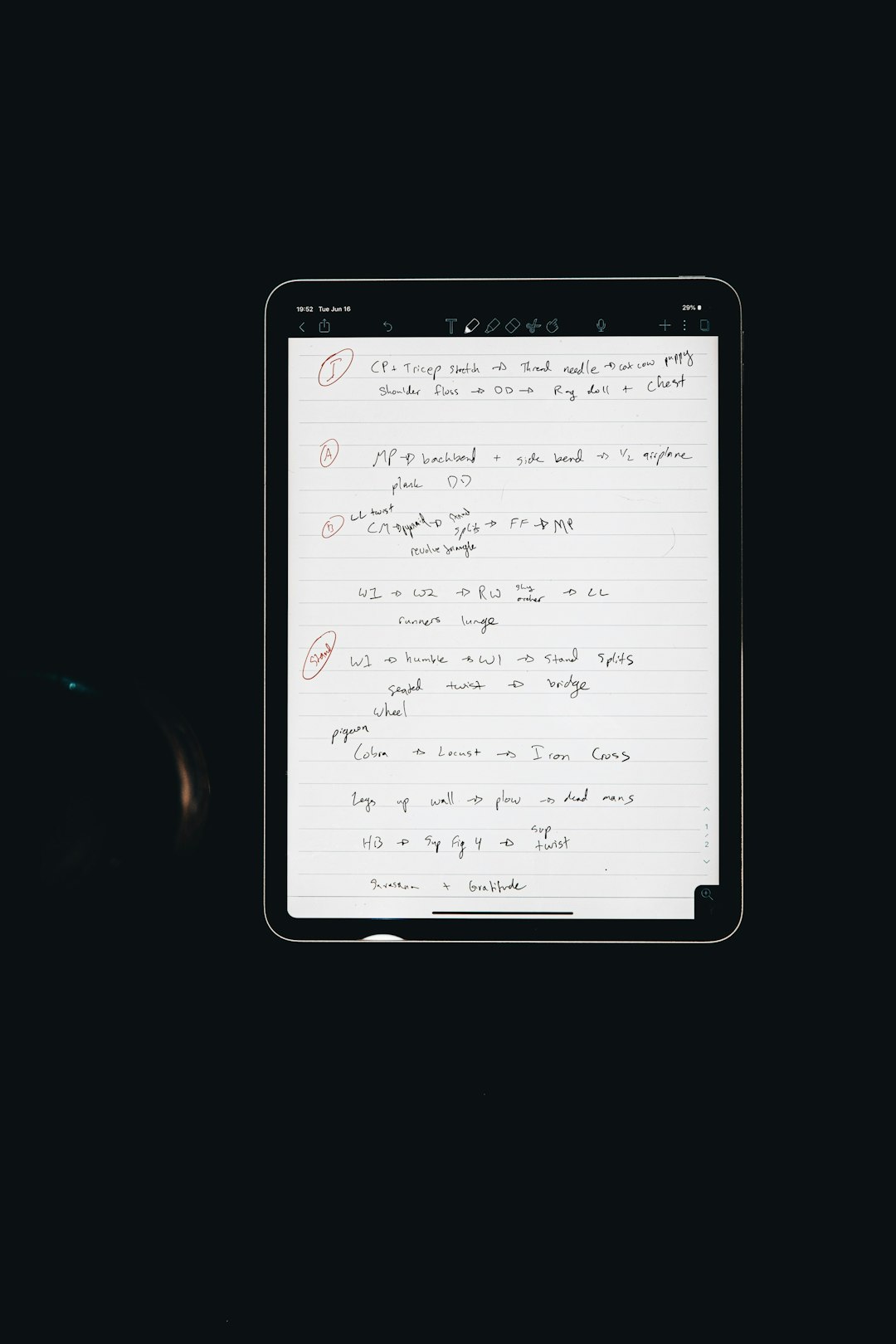
Note-taking on e-ink tablets is one of those experiences that should feel magical — and sometimes almost does. You pick up a stylus, write on a paper-like display, and your thoughts flow without the distractions of a glowing LCD. But the software? The software has always been the weak link.
That's why I've been building SmartNotes — a handwriting-first note-taking app designed specifically for e-ink tablets, starting with the Onyx Boox Tab 15c Air.
The Problem with Existing Solutions
Every e-ink tablet ships with a built-in note-taking app. And every one of them has the same fundamental problem: they treat handwriting as a second-class citizen in a world built for keyboards.
The stock apps feel like afterthoughts. Pen input is laggy. Export options are limited to flat images. Your notes get trapped in proprietary formats that you can't open anywhere else. Want to share a note with a colleague? Here's a blurry PNG. Want to edit it on another device? Too bad.
This creates a frustrating paradox. You buy an e-ink tablet because you want a focused, distraction-free writing experience. But the software forces you into compromises that a $2 notebook doesn't ask you to make.
What SmartNotes Does Differently
SmartNotes is built around three principles that most note-taking apps ignore:
1. Handwriting has to feel right. This isn't a PDF annotator with a pen mode bolted on. The ink canvas is a custom SurfaceView that renders strokes with pressure sensitivity, tilt awareness, and Catmull-Rom spline smoothing. On e-ink hardware, latency is everything — the app uses predicted point rendering to draw ahead of the stylus tip, compensating for the display's inherent refresh delay. The goal is sub-20ms touch-to-framebuffer latency on the software side.
2. Your notes should never be trapped. SmartNotes stores notes as SVG files with a custom ink namespace. What this means in practice: open the file in any browser, image editor, or SVG viewer, and it renders correctly. Open it in SmartNotes (or any compatible app), and you get full editability back — pressure data, tilt, tool type, everything. No vendor lock-in. No proprietary formats. Your handwriting is yours.
3. E-ink isn't an afterthought — it's the target. Most Android apps are designed for LCD screens and merely tolerated on e-ink. SmartNotes flips this. The UI is high-contrast black-on-white with no animations, no fades, no scroll physics that cause ghosting. Active tool states use inverted fills instead of color highlighting, because the Kaleido 3 color layer has lower resolution and muted saturation. The app uses Onyx's EpdController for partial refresh during drawing — only the region where ink is being laid down gets updated, not the entire screen.
The Stack
The architecture is deliberately straightforward:
- Jetpack Compose for the UI shell — folder browser, toolbar, template picker, settings
- Custom SurfaceView for the ink canvas — real-time stroke rendering decoupled from the UI thread
- Room database for local storage — note metadata, folder structure, stroke data as binary blobs for fast access
- Google Drive sync via OAuth 2.0 — folder structure mirrors to Drive, notes synced as SVG files, background sync via WorkManager
The key architectural decision was separating the fast-access editing format from the portable export format. While you're writing, strokes are stored as compact binary blobs in Room — arrays of {x, y, pressure, tilt, timestamp} per stroke. SVG serialization happens on-demand: when you sync, export, or share. This means the editing pipeline stays fast while the export format stays open.
Templates That Actually Help
Templates are one of those features that sound simple and get complicated fast. SmartNotes ships with two layers:
Background templates — Blank, Lined, Grid, Dot Grid, Cornell, and Isometric. These are rendered as lightweight vector patterns, stored as JSON definitions. They scale perfectly, add no file size, and swap without affecting your ink.
Structural templates — Meeting Notes, Journal Entry, Brainstorm, Product Brainstorm, and To-Do List. These are pre-defined layouts with labeled zones rendered as light gray hints behind your writing. They give your notes structure without constraining them.
You pick a template when creating a note, but you can change it later. The background swaps; your ink stays.
The Eraser Problem
Erasers seem simple until you actually build one. SmartNotes has three modes:
The stroke eraser deletes entire strokes on tap — touch any part of a line and the whole thing disappears. Simple, fast, predictable.
The pixel eraser is more interesting. It erases the exact area under the cursor, splitting strokes into segments. When you erase through the middle of a line, you get two new sub-strokes with interpolated pressure values at the split points. Undo restores the original unsplit stroke in one step.
The object eraser uses spatial clustering (DBSCAN) to detect groups of strokes that form logical objects — a circled word, a boxed diagram. Tap near a cluster and the entire group highlights for deletion. It's the kind of feature that feels obvious in hindsight but requires real geometry work under the hood.
Sync Without Surprises
Google Drive sync follows a simple model: the app creates a SmartNotes/ folder in your Drive root, mirrors your folder structure as subfolders, and syncs each note as an SVG file named after its title.
Background sync runs every 15 minutes via WorkManager, with additional on-change triggers when the app is in the foreground. Conflict detection compares local content hashes against Drive file state. If a note changed both locally and remotely since the last sync, it gets flagged — you choose to keep local, keep remote, or keep both.
The sync metadata file is versioned with a schema version field, so future updates can migrate state gracefully without breaking existing installations.
What I've Learned So Far
Building for e-ink teaches you things that building for LCD never will.
Performance constraints are different. On an LCD, a 16ms frame budget is generous. On e-ink, the physical display refresh adds ~120ms of hardware latency that you can't optimize away. Every millisecond you save in the software pipeline directly impacts how "paper-like" writing feels. Bitmap buffering — caching completed strokes so each frame only blits a buffer plus the current stroke — made a bigger difference than any algorithmic optimization.
Less UI is more. Every animation, every transition, every smooth scroll that looks polished on an LCD becomes a ghosting artifact on e-ink. The best e-ink UI is one that changes state instantly and draws as little as possible. This constraint actually produces a better, more focused interface.
Open formats matter more than features. The single most important architectural decision was choosing SVG as the export format. Features can be added incrementally. But if your notes are trapped in a proprietary format from day one, no amount of features will fix the trust problem.
What's Next
SmartNotes is functional today — you can create notes, organize them in folders, write with pressure-sensitive ink, erase, select and transform strokes, export to SVG/PDF/PNG, and sync to Google Drive. The core loop works.
The roadmap is focused on polish: zoom and pan, thumbnail page navigation, drag-and-drop folder management, and deeper e-ink optimizations. The foundation is solid. Now it's about making every interaction feel as natural as putting pen to paper.
The tools we use to think should get out of the way and let us think. That's the bar. Everything else is implementation detail.
Comments
No comments yet. Be the first to share your thoughts.